How to print text messages for court from an Android phone
Published September 16, 2026 · Updated October 28, 2026
Android gives you two workable routes: screenshots organised into a transcript, or an SMS backup app that exports the raw messages. Here is how to do each and when to choose which.
Option 1: Screenshots into a transcript
- Open the conversation in Google Messages or Samsung Messages and scroll to the oldest message you need.
- Tap and hold a bubble, or tap it once, to show its exact time. In Google Messages, tapping a bubble shows the time underneath it.
- Take a screenshot (power + volume down on most phones). Scroll so the last bubble is still visible at the top of the next screenshot, then screenshot again, all the way to the newest message.
- Leave the images untouched. Do not crop or annotate them.
- Upload them to Court Texts to get a numbered, dated transcript PDF with every screenshot attached as an exhibit.
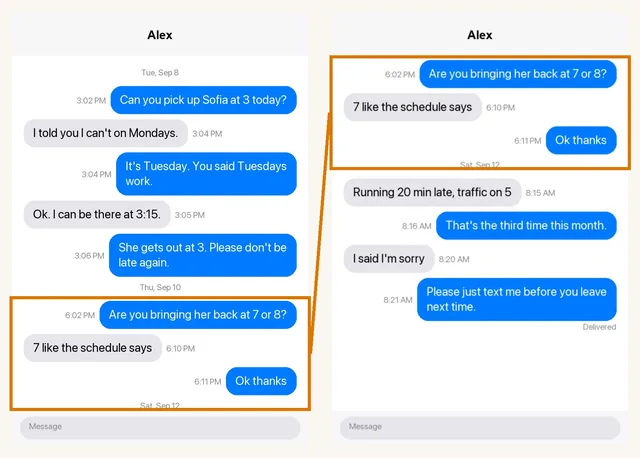
Option 2: An SMS backup export
Apps such as SMS Backup & Restore can export a conversation to a file or a printable PDF. This captures every message with its stored timestamp and phone number, which is stronger if the other side may claim the screenshots were edited. The exports are plain and unnumbered, and MMS images sometimes come out separately, so you may still want to organise the result into a transcript.
Can you pick up Sofia at 3 today?
I told you I can't on Tuesdays.
WhatsApp on Android
WhatsApp has a built-in export: open the chat, tap the menu, choose More › Export chat, and pick with or without media. The export is a text file that many people then screenshot anyway. Screenshots of the chat work with Court Texts the same as SMS screenshots.
Or record the screen instead of taking screenshots
For a long conversation, a screen recording is faster and leaves no gaps. Pull down the quick settings panel, tap Screen record (Samsung calls it Screen recorder), open the chat, scroll slowly from the oldest message you need to the newest, then stop. The video lands in your gallery. Court Texts accepts the recording in the same picker as screenshots and samples it into overlapping frames on the phone before reading. Scroll steadily, stay in the chat, and split anything over ten minutes into two recordings.
Printing Android texts for any purpose, not just court
Google Messages and Samsung Messages have no print button, so whatever the reason, for an insurer, a landlord, HR or just to keep, the routes are the same:
- Screenshots, then print. Press power and volume down together, scroll, repeat; many phones offer a scrolling capture that takes a long screenshot in one go. Open the screenshots in Photos or Gallery, tap Share or the menu, then Print, and pick a printer or Save as PDF.
- A backup app. SMS Backup & Restore saves every conversation to a file for free, and its sibling SMS Backup, Print & Restore prints one conversation at a time to PDF. Check the developer name before installing; see SMS Backup & Restore to a PDF.
- Google Messages for web. Pair the phone at messages.google.com on a computer, open the conversation, and print the browser page or save it as PDF. Long threads load only as you scroll, so scroll to the start first.
- A transcript from screenshots or a screen recording. For a long thread, Court Texts turns screenshots into a typed, numbered list with dates and times and attaches the originals. Our comparison of the best apps to print text messages covers the other tools.
What the court wants to see
- Chronological order with numbering, so anyone can refer to "message 42".
- Sender, date and time on every message.
- The original images attached, so the transcript can be checked against them.
- Your statement, in person or in writing, that the messages came from your phone and were not altered.
Read next: Can screenshots be used in court? · Organizing screenshots for court · Authenticating text messages · Getting a transcript · WhatsApp for court · Text messages to PDF · Preparing texts for court: checklist · 6 ways to get texts for court · Can text messages be used in court? · Are text messages admissible? · Decipher TextMessage or iMazing for court?
Turn your screenshots into a transcript PDF for court →